
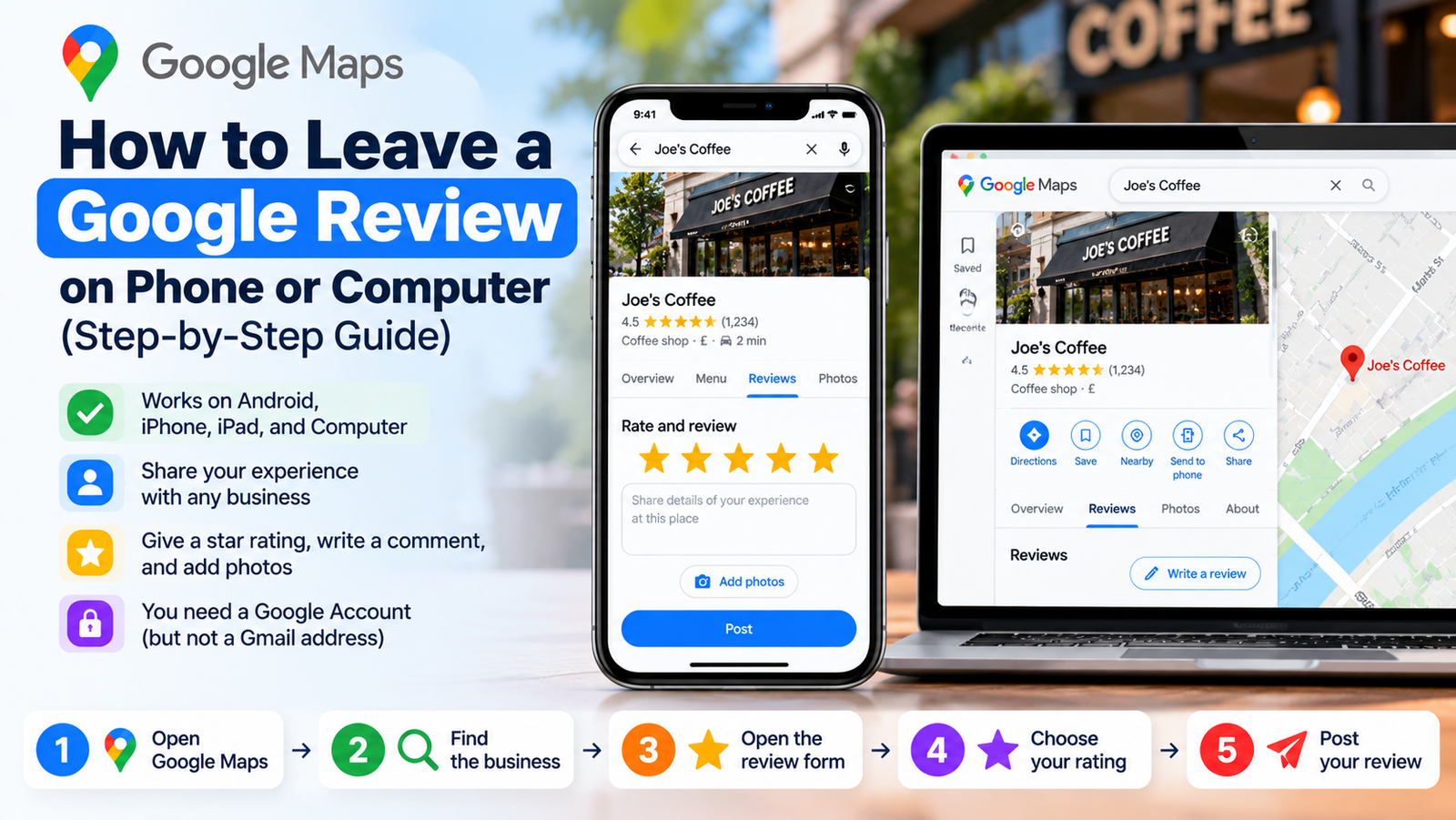
Want to leave a Google review but can’t find the review button? Whether you’re using an Android phone, iPhone, iPad, or computer, you can share your experience with a business through Google Maps.
Quick answer: Open Google Maps, search for the business, select the correct location, find the review option, choose a rating from one to five stars, and post your feedback. You can write a comment or submit a star-only rating.
You need a Google Account, but you don’t need a Gmail address. Your rating or review will be public, and Google may check it for policy compliance before it becomes visible.
This guide walks you through the process on different devices, explains what to do when the review button is missing, and shows you how to find, edit, delete, or share an existing review.
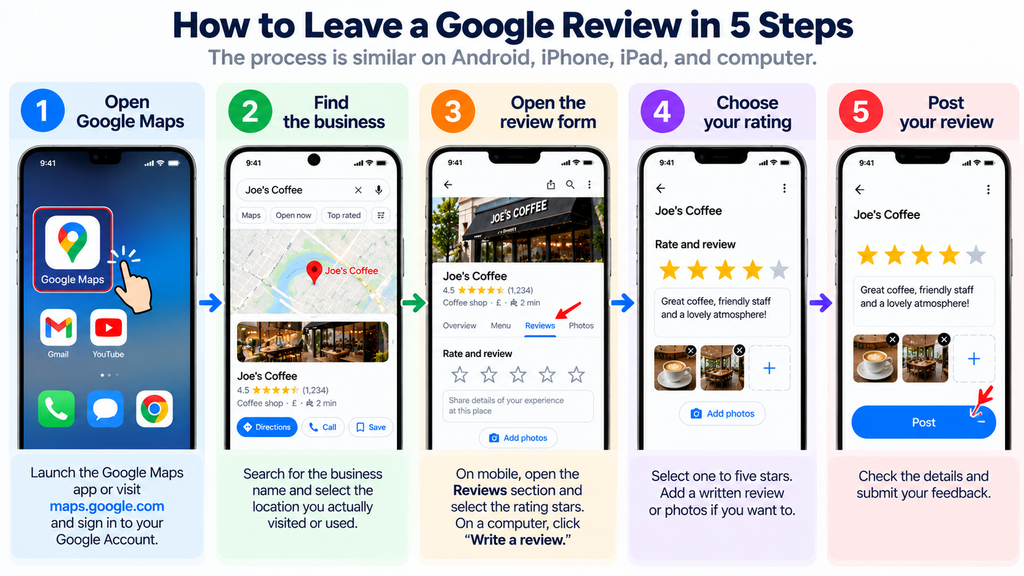
How to Leave a Google Review in 5 Steps
The basic process is similar on phones and computers.
- Open Google Maps. Launch the Google Maps app or visit maps.google.com.
- Find the business. Search for its name and select the location you actually visited or used.
- Open the review form. On mobile, open the Reviews section and select the rating stars. On a computer, click Write a review.
- Choose your star rating. Select one to five stars. Add a written review or photos if you want to.
- Post your review. Check the details and submit your feedback.
That’s the essential process. You can follow the device-specific instructions below if you need help finding a particular button.
Before You Review: Make Sure It’s the Right Business
Google Maps may display several businesses with similar names or different branches of the same company.
Check these details before posting:
| Check | Why it matters |
| Business name | Prevents reviewing another business with a similar name |
| Street address | Helps distinguish branches and separate locations |
| Business category | Confirms the listing matches the service you used |
For example, suppose you visited a restaurant in Manchester city centre. If the restaurant also has a branch in Salford, select the city-centre listing rather than reviewing the wrong location.
Important: If you have already posted your review to the wrong branch, find it in your contributions and delete it. You can then submit feedback for the correct business.
How to Leave a Google Review on Android
You can add a Google review using the Google Maps app on an Android phone or tablet.
Step 1: Open Google Maps
Launch the Google Maps app and sign in to your Google Account.
If you use multiple Google accounts, tap your profile picture to check which account is active. Your review will be associated with the account you use to post it.
Step 2: Find the Business
Enter the business name in the search bar, or select its location directly on the map.
When the results appear, compare the business name and address.
Tap the correct business and open its information panel.
Step 3: Find the Review Stars
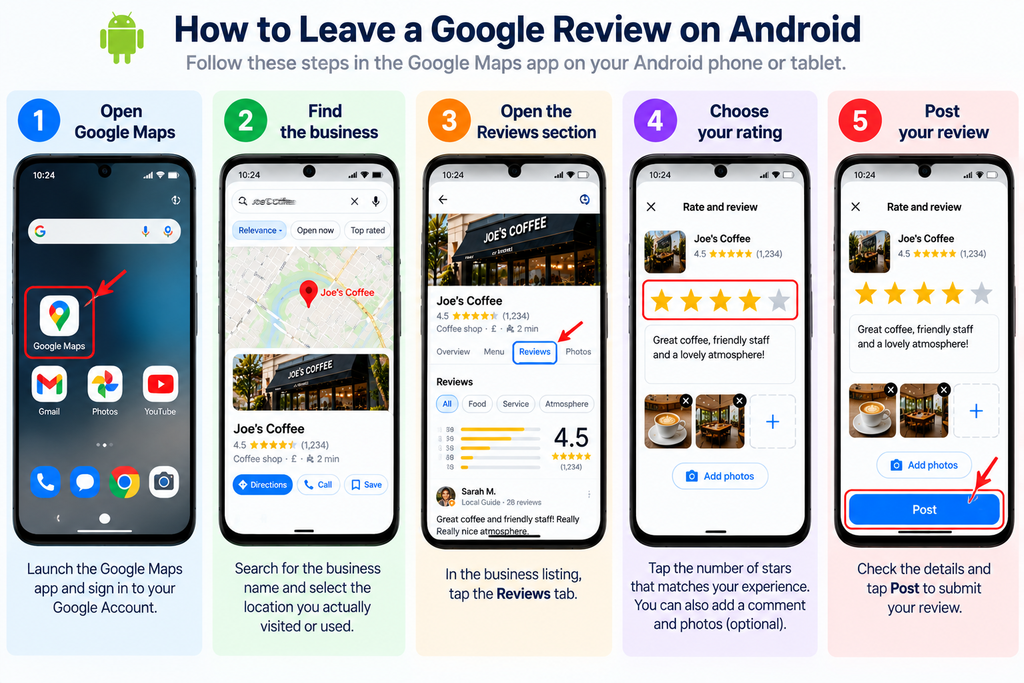
In the business listing, open the Reviews section.
Find the area for rating the place. Google Maps provides a five-star rating control.
You may need to scroll through the business information or Reviews section to find it, depending on the app layout.
Step 4: Choose Your Rating
Tap the number of stars that matches your experience.
Google may display a form with options to:
- Describe your experience in writing.
- Add relevant photographs.
- Provide additional details about your visit.
A written comment is optional. However, specific feedback can make your review more helpful to other customers.
Step 5: Post Your Review
Before submitting, check that:
- You selected the right business.
- Your rating reflects your experience.
- Your comments are accurate.
- Your photographs do not reveal private information.
Tap the available posting control to submit.
Can’t find the rating stars? Make sure you’re viewing the complete business listing rather than a search preview. If the review option still isn’t available, see the troubleshooting section below.
Official reference: Google Maps Help — Android
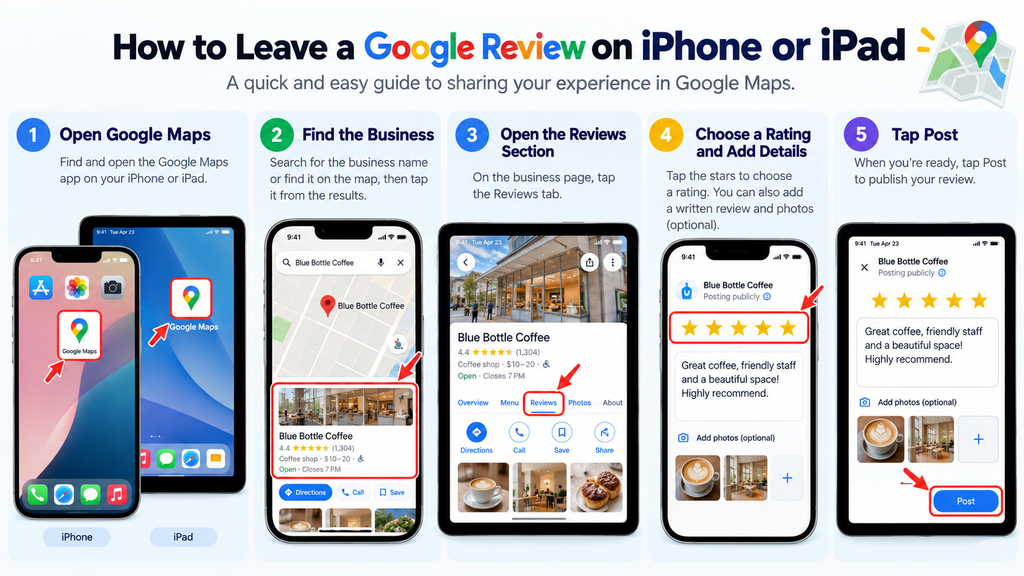
How to Leave a Google Review on iPhone or iPad
You don’t need an Android device to leave a Google review. The Google Maps app also supports reviews on iOS and iPadOS.
Step 1: Open the Google Maps App
Launch Google Maps on your iPhone or iPad.
Sign in to the Google Account you want to use.
If you haven’t installed Google Maps, you can get the app from Apple’s App Store.
Step 2: Search for the Business
Use the search bar to find the restaurant, shop, hotel, or other business you want to review.
If multiple locations appear, check the addresses before selecting the correct result.
Tap the business name or address to open its details.
Step 3: Open the Reviews Section
In the business information panel, tap Reviews.
Find the five-star rating control and select your rating.
The exact placement of interface elements can vary between app versions, so look for the Reviews section rather than relying on a fixed position on the screen.
Step 4: Write Your Review
After choosing your star rating, add a comment if you want to explain your experience.
Useful details may include:
- What service or product you used.
- Whether the business met your expectations.
- What went particularly well or poorly.
- Whether the staff explained important information clearly.
Keep your comments relevant to your actual experience.
Step 5: Submit Your Feedback
Read your review once more, particularly if you mention specific dates, prices, or services.
Use the on-screen posting control to submit your review.
If you can’t see the review option, check whether you’re signed in, whether the listing is correct, and whether the Google Maps app needs updating.
Official reference: Google Maps Help — iPhone and iPad
How to Leave a Google Review on a Computer
If you prefer typing with a keyboard, you can leave a review directly through the Google Maps website.
The main difference is that the desktop interface provides a clearly labelled Write a review control.
Step 1: Open Google Maps
Open your browser and visit Google Maps.
Sign in to your Google Account.
Step 2: Search for the Business
Type the business name into the search bar.
Select the correct result and check the street address if multiple branches are listed.
The business information appears in a panel.
Step 3: Click Write a Review
Scroll through the business information panel and locate Write a review.
Click the button to open Google’s review form.
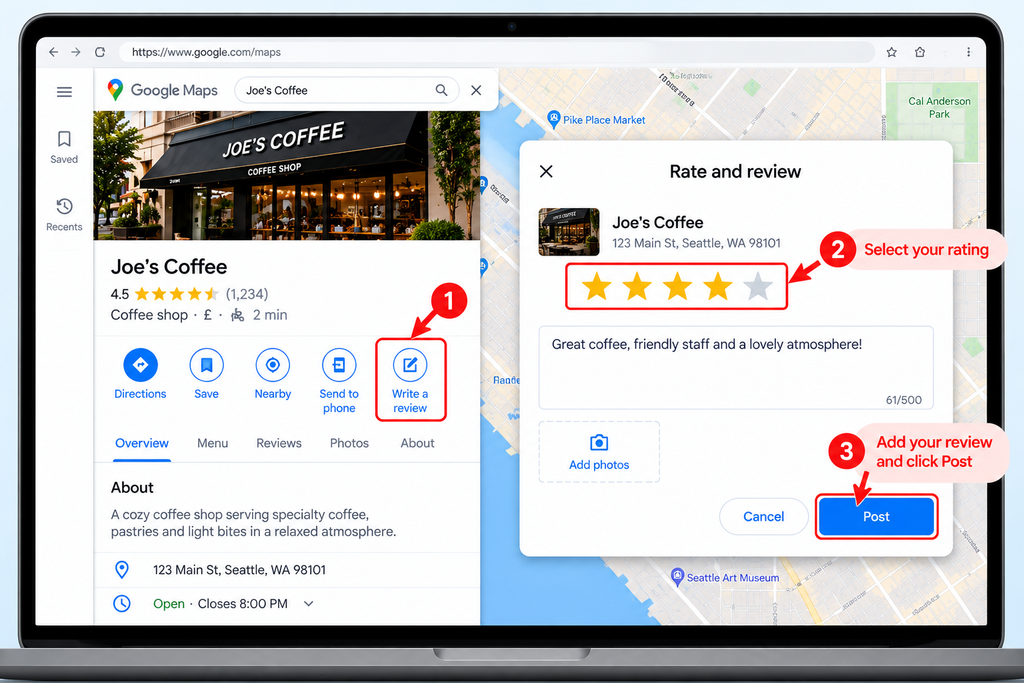
Step 4: Select Your Rating and Add Feedback
Click one of the five stars to choose your rating.
If you want to provide more information, type your review into the text field. You can also attach relevant photographs using the available controls.
Try to explain what happened rather than relying only on general comments such as “great” or “terrible.”
Step 5: Click Post
Check your rating and any written feedback, then click Post.
Google may moderate your submission before it appears publicly.
Official reference: Google Maps Help — Computer
Android vs. iPhone vs. Computer: What’s Different?
The main review process works similarly across devices, but the controls are presented differently.
| Feature | Android | iPhone/iPad | Computer |
| Where to start | Google Maps app | Google Maps app | Google Maps website |
| How to find a business | Search or select map location | Search or select map location | Search |
| Review entry point | Reviews section and stars | Reviews section and stars | Write a review button |
| Written review | Optional | Optional | Optional |
| Photo attachment | Supported | Supported | Supported |
| Google Account | Required | Required | Required |
Which method is easiest? Use the device on which you’re already signed in to Google. If you want to write a detailed review, a computer may be more convenient because of its full-sized keyboard.
How to Leave a Google Review Using a Link or QR Code
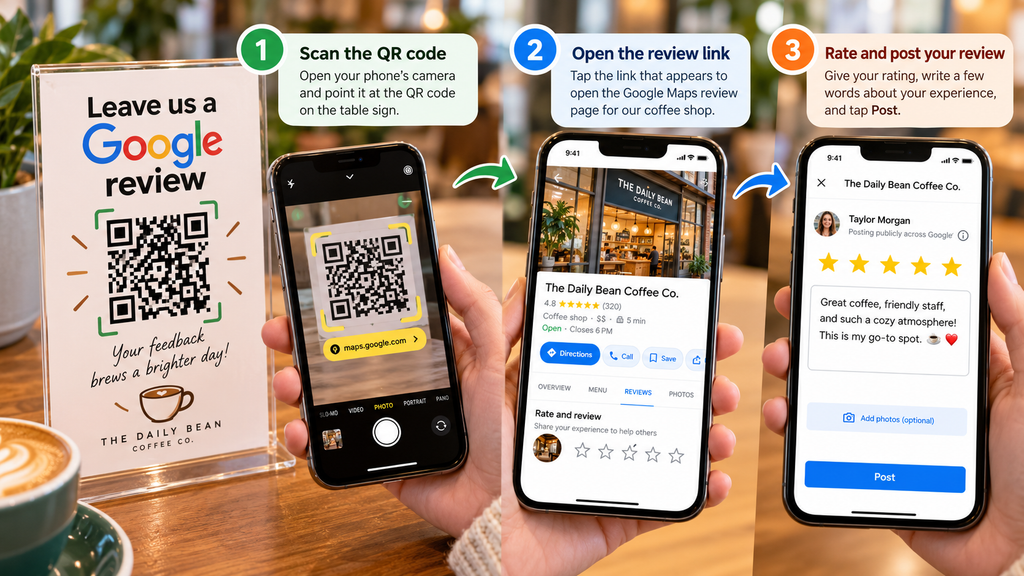
Some businesses provide customers with a direct Google review link or QR code.
These can make the process quicker because you may not need to search manually for the business.
Leave a Review Using a Direct Link
- Open the review link supplied by the business.
- Check that it leads to the correct Google business listing or review form.
- Verify the business name and location.
- Sign in to Google if required.
- Select your rating and enter any optional comments.
- Submit your review.
Depending on how the link was generated, it may open the review form directly or take you to another Google page.
Leave a Review Using a QR Code
- Open the camera on your phone.
- Point it at the QR code.
- Tap the link recognised by your camera.
- Check the web address and business details.
- Follow the Google review instructions.
How to Recognise a Suspicious Review Link
A review link should not require you to enter your Google password into an unfamiliar website.
Before signing in, check the full address of the page that requests your credentials.
A link may use a redirect or shortened URL, but the actual Google sign-in should happen through a legitimate Google authentication page.
Avoid entering passwords, verification codes, or private account information into forms supplied by unknown third parties.
Can a Business Offer a Reward for Your Review?
Google prohibits paid or incentivised reviews, including reviews rewarded with money, discounts, or free products.
The restriction is not limited to positive reviews. Offering a reward in exchange for submitting, changing, or removing a review can also violate Google’s policies.
Your feedback should represent your genuine experience, regardless of whether it is positive or negative.
Why Can’t I Leave a Google Review? Troubleshooting Guide
A missing review button, a review form that won’t open, and a submitted review that doesn’t appear publicly are different problems.
Start by identifying what actually happened.
Quick Diagnosis: Find Your Problem
| Problem | First thing to try | Possible underlying cause |
| No review button or stars | Open the full business listing | Wrong screen, account issue, or review restrictions |
| Review form won’t open | Restart or update Google Maps | App, network, or browser problem |
| Review won’t submit | Check internet connection and try again | Connection, app, or submission issue |
| Review submitted but not visible | Check your contributions | Moderation delay or policy restrictions |
| Previously visible review disappeared | Check contributions and business listing | Removal or listing changes |
| Wrong business appears | Search by business name and address | Similar names or multiple branches |
Problem 1: The Google Review Button Is Missing
What happens: You can open the business listing, but cannot find the review option.
Try these steps in order:
- Confirm that you’re signed in to the intended Google Account.
- Search for the business again and select its full listing.
- On a phone, open the Reviews section and look for the rating stars.
- On a computer, look for the Write a review control.
- Check whether the same listing offers reviews when viewed through another supported device or browser.
- Consider whether Google has disabled or restricted reviews for that business.
Important: Not every listing accepts reviews. Google may restrict user-created content for certain businesses or business categories.
For example, Google has disabled ratings and reviews for certain educational institutions primarily serving students aged 6–18.
If Google has restricted reviews for a listing, updating your app or changing devices will not override that restriction.
Problem 2: The Review Form Won’t Open
What happens: The review option is visible, but tapping or clicking it doesn’t load the form.
This may indicate a technical problem rather than a restriction.
Try:
- Checking that your internet connection is working.
- Closing and reopening Google Maps.
- Updating the Google Maps app.
- Signing in again if your session has expired.
- Trying Google Maps in an updated web browser on a computer.
After each attempt, return to the business listing and try the review button again.
These steps may resolve temporary loading problems, but they are not guaranteed fixes.
If reviews are restricted for the business, technical troubleshooting may not help.
Problem 3: Your Review Won’t Submit
What happens: You’ve written a review, but posting fails or the form remains open.
First, copy any text you’ve written so you don’t lose it.
Then check:
- Is your internet connection stable?
- Are you signed in to the intended account?
- Does Google Maps show a specific error message?
- Is the app or browser up to date?
- Does your review contain prohibited content?
If the problem continues, follow any error-specific instructions shown by Google.
Avoid repeatedly posting the same review through multiple accounts. Duplicate or manipulative activity can violate Google’s policies.
Problem 4: Your Google Review Is Not Showing Publicly
What happens: You submitted your review, but it isn’t visible on the business’s public listing.
This does not necessarily mean the submission failed.
Google checks reviews for policy compliance, and some may take a few days to appear.
Use the following checks.
Check 1: Is the review saved in your account?
Open Google Maps and find your contributions or review history.
If the review isn’t there, verify that you’re using the same Google Account that submitted it.
Check 2: Are you checking the right business?
Confirm the name and street address of the business listing.
A review of one branch won’t automatically appear on every branch of the same business.
Check 3: Has the business listing changed?
If a business recently merged Google Business Profiles, Google says reviews from the merged profiles may take a few days to appear.
Check 4: Is the review awaiting moderation?
New reviews can be delayed while Google’s systems check them.
There is no guaranteed publication time.
Check 5: Does the review comply with Google’s policies?
Google may remove reviews involving fake experiences, spam, prohibited promotional content, harassment, or other policy violations.
If your review is missing, don’t assume the business deleted it.
Official reference: Google — About Missing or Delayed Reviews
Problem 5: Your Google Review Disappeared
What happens: Your review was previously visible, but you can no longer find it.
Several explanations are possible:
- Google removed the review following a policy assessment.
- The business listing was merged or otherwise changed.
- Reviews are temporarily affected by moderation or display delays.
- You may be checking a different business profile or Google Account.
A business owner cannot directly delete someone else’s negative review simply because they dislike it.
However, business owners can report reviews they believe violate Google’s policies. Google decides whether removal is appropriate.
What should you do?
First, check whether the review still appears in your Google Maps contributions.
Next, verify the business listing and consult Google’s missing-review guidance.
Google states that reviews removed for policy violations generally are not restored.
If the review remains missing, avoid repeatedly posting duplicate copies as a workaround.
When Troubleshooting Won’t Fix the Problem
Some review problems are outside the customer’s control.
For example, if Google disables reviews for a particular business category, there may be no available review button even when your account and app are working correctly.
Similarly, submitting a review does not guarantee that Google will publish it.
The most useful approach is to identify whether the problem is caused by your device, your account, the specific business listing, or Google’s moderation and review policies.
How to Find, Edit, Delete, or Share Your Google Reviews
You can manage reviews you’ve already posted through Google Maps.
This is useful if you need to correct a factual mistake, update your rating after another experience, or remove a review you no longer want published.
How to Find Your Reviews on Android or iPhone
- Open the Google Maps app.
- Sign in to the Google Account that posted your review.
- Tap Contribute.
- Tap View your profile.
- Scroll down and select See all reviews.
You should see your previously submitted reviews associated with that account.
How to Find Your Reviews on a Computer
- Visit Google Maps.
- Sign in to your Google Account.
- Open the main menu.
- Select Your contributions.
- Choose Reviews.
How to Edit a Google Review
Once you’ve located the review:
- Open the three-dot menu next to it.
- Choose Edit review.
- Update your star rating, written feedback, or available attachments.
- Save your changes.
Important: Google says the date shown for an edited review may change to the date of the latest edit.
If you’ve had another genuine experience with the same business, updating your original review is usually more appropriate than attempting to publish duplicate reviews.
How to Delete a Google Review
- Open your review history.
- Find the review you want to remove.
- Select the three-dot menu.
- Choose Delete review.
- Follow the confirmation instructions.
Deleting a review removes the feedback you’ve posted through that account. If you only need to correct a detail, consider editing instead.
How to Share Your Google Review
You can also share an existing review with someone else.
On Android or iPhone:
- Open Google Maps.
- Tap Contribute and then View your profile.
- Find the review you want to share.
- Tap the Share option associated with the review.
- Choose the available sharing method.
On a computer:
- Open Google Maps.
- Go to Your contributions and select Reviews.
- Find your review.
- Use the available Share control to share it.
The recipient may be able to open the review in Google Maps or another supported Google interface.
Do You Need Gmail to Leave a Google Review?
No. You need a Google Account, but it does not have to use a Gmail email address.
You can create a Google Account using an eligible email address from another provider, such as Outlook.
If you don’t have a Google Account:
- Visit Google Account creation.
- Follow the account setup instructions.
- Choose the option to use an existing email address if available and appropriate.
- Complete any required verification.
- Sign in to Google Maps.
Once signed in, you can return to the business listing and begin the review process.
Can You Leave a Google Review Without a Google Account?
No. Posting a Google Maps review requires a Google Account.
You can read public reviews without necessarily being signed in, but submitting your own review requires an account.
Can You Leave a Google Review Anonymously?
No. Google Maps does not support anonymous business reviews.
Google reviews and ratings are public. Other people may see the public name and image associated with your Maps contributions.
Google offers certain profile-visibility settings, but restricting profile discovery does not make an individual review private or anonymous.
Google also offers options for choosing how your name and picture appear publicly on Maps and Search.
Before posting, avoid including:
- Your home address or personal phone number.
- Credit-card or banking details.
- Private account numbers.
- Other customers’ sensitive information.
- Photographs of confidential documents.
- Personal information unrelated to your experience.
For more information, see Google’s guidance on controlling who finds your Maps contributions.
How to Write a Helpful Google Review
A helpful review explains what you experienced and why you chose your rating.
Compare these two comments:
Vague: “Amazing service!”
More useful: “I booked a morning appointment, was seen at the scheduled time, and received a clear explanation of the work before agreeing to the cost.”
The second example gives potential customers information they can use.
You don’t need to write a long paragraph. A few accurate and relevant sentences can be enough.
Use the Experience–Evidence–Outcome Method
A practical review can include three elements:
1. Experience — What did you use?
Identify the service, product, or interaction.
For example: “I booked a vehicle service at this garage.”
2. Evidence — What happened?
Describe relevant observations.
For example: “The mechanic explained the work beforehand and completed the appointment at the agreed time.”
3. Outcome — What was the result?
Explain how the experience affected your opinion.
For example: “The final price matched the estimate, so I felt comfortable with the service.”
This framework is a writing aid, not a requirement set by Google.
Example of a Positive Google Review
Fictional example for illustration only.
“I visited this café on Saturday morning. The staff explained the breakfast options, our meals arrived hot, and the tables were clean. The service was friendly without feeling rushed, and the overall experience was enjoyable.”
Why it works: It identifies the context, provides concrete observations, and explains the positive rating.
Example of a Negative Google Review
Fictional example for illustration only.
“I booked an appointment for 2 pm, but the service didn’t start until 2:40 pm. I wasn’t informed about the delay when I arrived. The staff were polite, but better communication about waiting times would have improved my experience.”
Why it works: The review describes a specific problem without personal insults or exaggerated allegations.
Example of a Balanced Google Review
Fictional example for illustration only.
“The hotel room was clean and the location was convenient for the railway station. Check-in was straightforward, but there was noticeable noise from the corridor during the night. Overall, the stay was reasonable, although soundproofing could be improved.”
Why it works: It includes both positive and negative observations rather than presenting an incomplete account.
Turn a Vague Review Into a Useful One
| Vague comment | More informative version |
| Great restaurant! | The food arrived hot, the menu was clearly explained, and our order was correct. |
| Terrible service. | My appointment started 35 minutes late, and I wasn’t given an estimated waiting time. |
| Amazing hotel! | The room was clean, the check-in process was quick, and the location was close to public transport. |
| Bad product. | The item was missing a feature listed in the product description, and I couldn’t resolve it during my visit. |
These examples are fictional. Don’t copy them and present them as a review of an experience you didn’t have.
Should You Add Photos?
Relevant photos can make a review more informative.
They may help show:
- A restaurant meal you ordered.
- A hotel room you stayed in.
- The condition of a product you purchased.
- A completed service or repair.
- A feature that affected your experience.
Only upload photos that accurately represent the relevant place, product, or service.
Check for private details, documents, and identifiable people before uploading.
What Should You Avoid in a Google Review?
A review should reflect a genuine, relevant experience.
Avoid fabricated claims, paid or incentivised ratings, spam, harassment, and conflicts of interest.
Also avoid:
- Posting personal information about staff or customers.
- Making unsupported accusations.
- Including unrelated promotional links.
- Posting reviews from multiple accounts to manipulate ratings.
- Reviewing a business you haven’t genuinely experienced.
Google can remove reviews that violate its content policies.
Official reference: Google Maps — Prohibited and Restricted Content
Frequently Asked Questions
Is It Free to Leave a Google Review?
Yes. Google does not charge customers to leave ordinary ratings and reviews through Google Maps.
Can I Leave a Google Review Without Visiting the Business?
A review should be based on a genuine experience with the business.
A physical visit isn’t always necessary. For example, a customer may have a genuine experience with an online service or a business that provides remote support.
However, reviews should not be fabricated or based solely on second-hand claims.
Can I Leave Only a Star Rating?
Yes. You can leave a star-only rating without adding a written comment.
Adding accurate details can make your feedback more useful, but it is optional.
Can I Leave a Negative Google Review?
Yes. Genuine negative feedback is allowed, provided it follows Google’s content policies.
Describe what happened accurately. Avoid harassment, threats, private information, or unsupported allegations.
How Long Does a Google Review Take to Appear?
There is no guaranteed publication time.
Some reviews become visible quickly, while others may be delayed by moderation. Google says certain checks can take a few days.
If your review doesn’t appear, check your contributions and the correct business listing before assuming it has been removed.
Why Can’t I Review Some Businesses?
Google may restrict reviews or other user-created content for some business profiles and categories.
For example, review functionality has been disabled for certain schools serving students aged 6–18.
A missing review button does not always mean there’s a problem with your device.
Can I Leave More Than One Google Review for the Same Business?
If you’ve already reviewed a business and want to reflect a later experience, update your existing review.
Avoid creating duplicate reviews using multiple accounts to influence the business’s rating.
Can a Business Delete My Negative Google Review?
A business owner cannot directly delete a review simply because it is negative.
They can report a review they believe violates Google’s policies. Google evaluates reported reviews and determines whether removal is appropriate.
Can I Change My Star Rating Later?
Yes. Find the original review in your Google Maps contributions, choose Edit review, and update the rating.
Google may display the date of your latest edit as the review date.
Can I See All the Google Reviews I’ve Written?
Yes. Open Google Maps and navigate to your contributions.
On mobile, select Contribute, View your profile, and See all reviews. On a computer, select Your contributions and then Reviews.
Final Thoughts
Leaving a Google review is straightforward once you know where to find the correct controls.
On Android and iPhone, open the business listing and look for the Reviews section and star-rating controls. On a computer, use the Write a review button in Google Maps.
Before posting, verify the business location, use the intended Google Account, and ensure your feedback accurately reflects a genuine experience.
If something goes wrong, identify whether the issue is a missing review button, a submission error, or a review that hasn’t become public. Each situation has different possible causes and solutions.
A helpful Google review doesn’t need to be lengthy. Clear, specific, genuine feedback is more valuable than exaggerated praise or criticism.


